website
Tap to Pay on iPhone Accept contactless payments right on your iPhone
Accept tap to pay on your iPhone and take contactless payments anywhere with a seamless checkout experience. Turn your iPhone into a secure way to get paid on Squarespace.
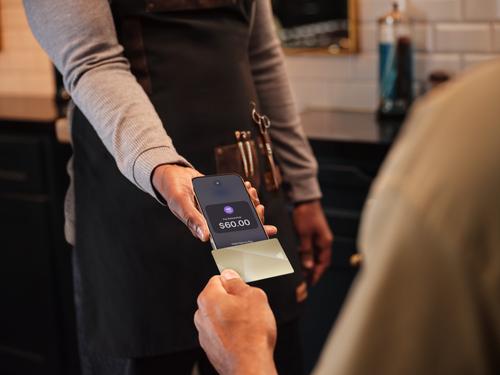
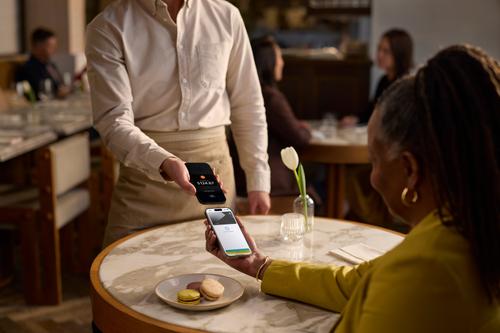


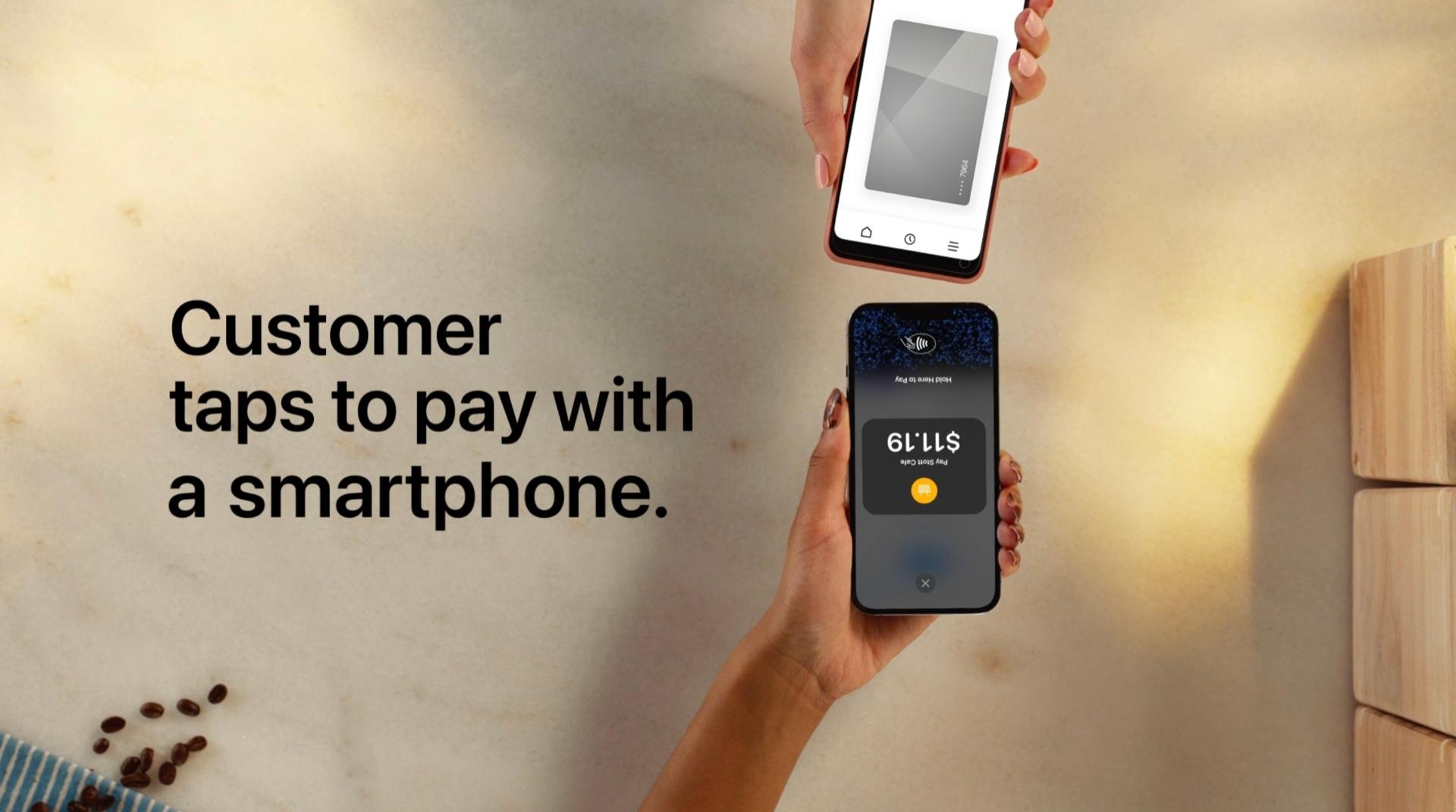







With Tap to Pay on iPhone and Squarespace, you can accept all types of in-person, contactless payments right on your iPhone – from physical debit and credit cards to Apple Pay and other digital wallets – no extra readers or hardware needed. It's easy, secure, and private.
With Tap to Pay on iPhone, you can accept all types of in-person, contactless payments right on your iPhone and expand how and where you do business. Reach new customers with a simpler checkout experience, take payments on the go, and explore new setups like line busting.
Tap to Pay on iPhone uses the built-in security and privacy features of iPhone to help protect your business and customer data. Apple doesn't store card numbers on Apple servers, so merchants and customers can rest assured that their data stays theirs.*
Open the Squarespace app on your iPhone, and enter the purchase amount for the sale.
Open the Squarespace app on your iPhone, and enter the purchase amount for the sale.
Present your iPhone to the customer.
Present your iPhone to the customer.
Your customer holds their card horizontally or their device over the contactless symbol on your iPhone for a few seconds.
Your customer holds their card horizontally or their device over the contactless symbol on your iPhone for a few seconds.
When you see the Done checkmark, the card read is complete and the transaction is being processed.
When you see the Done checkmark, the card read is complete and the transaction is being processed.
With Tap to Pay on iPhone and the Squarespace mobile app, you can accept all types of in-person, contactless payments, right on your iPhone—from physical debit and credit cards to Apple Pay and other digital wallets—no extra hardware required. It's easy, secure, and private.
Yes. Tap to Pay on iPhone uses the built-in security and privacy features of iPhone to help protect your business and customer data. Apple doesn't store card numbers on Apple servers, so merchants and customers can rest assured that their data stays theirs.*
From the Squarespace POS on your Squarespace app:
Open the Squarespace app.
Open the Squarespace app.
If prompted, log in or select your site.
If prompted, log in or select your site.
On the point of sale screen, tap ⚙️ to open Settings.
On the point of sale screen, tap ⚙️ to open Settings.
Tap Payment options, and switch the Tap to Pay on iPhone toggle on.
Tap Payment options, and switch the Tap to Pay on iPhone toggle on.
Verify the Apple ID and select your Apple ID:Tap Continue with This Apple ID to use your current Apple ID or tap Use a Different Apple ID to select a different Apple ID.Accept Apple's Terms of Service.
Verify the Apple ID and select your Apple ID:
Tap Continue with This Apple ID to use your current Apple ID or tap Use a Different Apple ID to select a different Apple ID.
Tap Continue with This Apple ID to use your current Apple ID or tap Use a Different Apple ID to select a different Apple ID.
Accept Apple's Terms of Service.
Accept Apple's Terms of Service.
Tap Done.
Tap Done.
You can start accepting payments on any iPhone connected to your store.
Once Tap to Pay on iPhone with Squarespace is activated for your store, it automatically pairs with all compatible devices that are logged into Squarespace POS under your store's account. There's no additional setup required for new devices.
Open the Squarespace app on your iPhone, and enter the purchase amount for the sale.
Open the Squarespace app on your iPhone, and enter the purchase amount for the sale.
Present your iPhone to the customer.
Present your iPhone to the customer.
Your customer holds their card horizontally or their device over the contactless symbol on your iPhone for a few seconds.
Your customer holds their card horizontally or their device over the contactless symbol on your iPhone for a few seconds.
When you see the Done checkmark, the card read is complete and the transaction is being processed.
When you see the Done checkmark, the card read is complete and the transaction is being processed.
With Tap to Pay on iPhone and the Squarespace app you can accept all types of in-person, contactless payments right on your iPhone - from physical debit and credit cards to Apple Pay and other digital wallets, including:
VISA
VISA
MasterCard
MasterCard
Amex
Amex
Diners Club (United States only)
Diners Club (United States only)
Discover (United States only)
Discover (United States only)
Transactions that require PIN entry will automatically prompt a PIN entry screen when using Tap to Pay on iPhone.
For non-contactless cards that require a swipe or to be inserted, you will need a separate card reader paired with your iPhone.
Tap to Pay on iPhone Requirements: Tap to Pay on iPhone requires a supported payment app and the latest version of iOS. Update to the latest version by going to Settings > General > Software Update. Tap Download and Install. Some contactless cards may not be accepted by your payment app. Transaction limits may apply. The Contactless Symbol is a trademark owned by and used with permission of EMVCo, LLC. Tap to Pay on iPhone is not available in all markets. For Tap to Pay on iPhone countries and regions, see developer.apple.com/tap-to-pay/regions.
*Tap to Pay on iPhone Encryption and Storage: Encrypted card numbers are temporarily stored on iPhone only for transactions made in Store and Forward mode.
Scan this QR code to download the Squarespace App